Getting started
What you need
- An Xteink X4 Pro.
- A Home Assistant instance on your network, and a long-lived access token for it (Home Assistant → your profile → Security).
- Somewhere to run Switchboard Server, a small Docker container: a spare mini PC, a NAS or an Unraid box all work.
1. Run the server
services:
  switchboard-server:
    image: ghcr.io/stumarti/switchboard-server:latest
    container_name: switchboard-server
    network_mode: host   # required: remotes find the server by mDNS
    environment:
      - PORT=45678
      - MDNS_HOSTNAME=switchboard.local
    volumes:
      - ./data:/data
    restart: unless-stopped
mkdir -p data
docker compose up -d
This file is docker-compose.yml in the server repository. On Unraid, use its unraid-template.xml instead (see Configuration).
2. Set it up
- Open
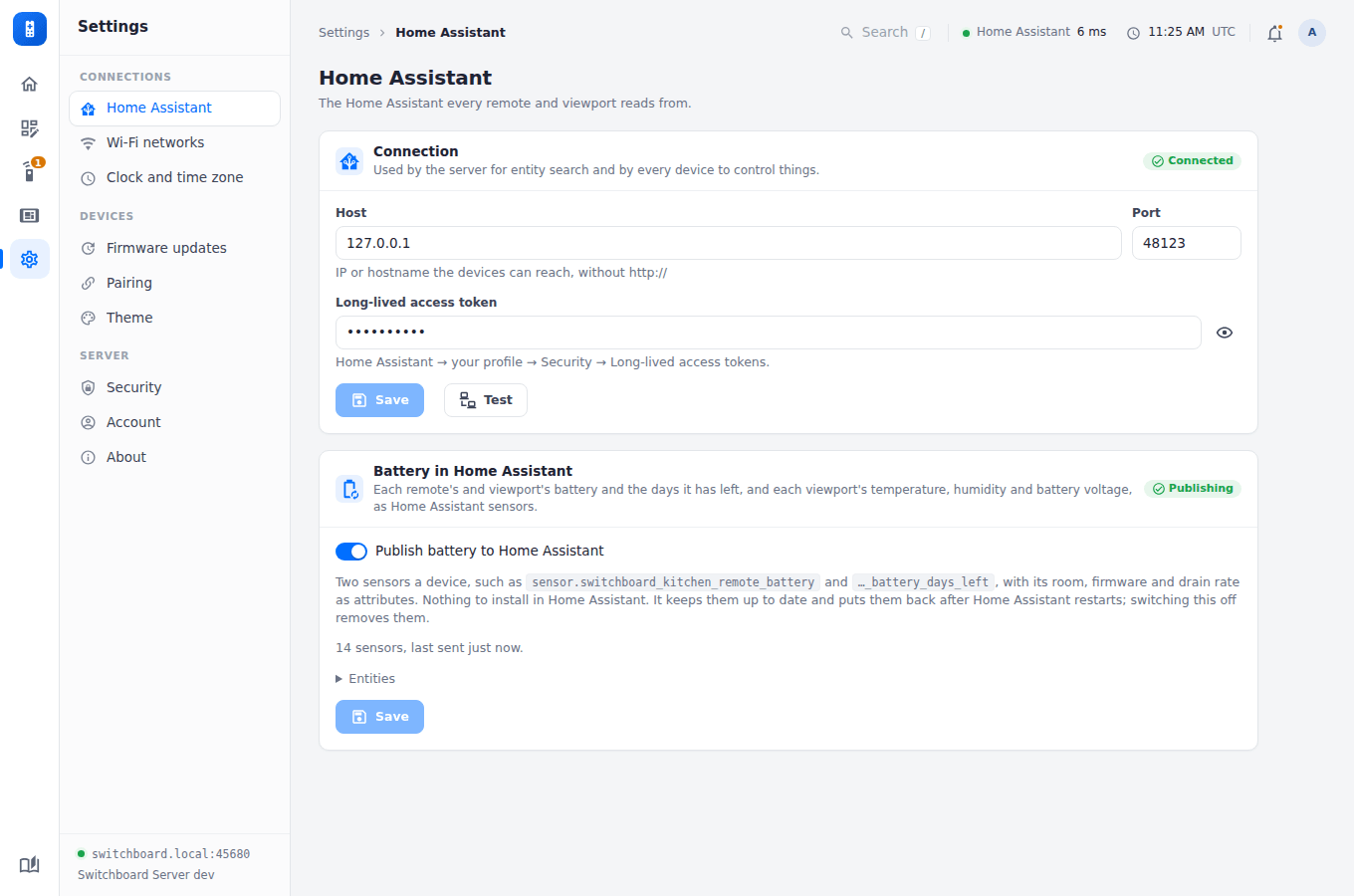
http://<your-server-ip>:45678and set an admin password. - Settings → Home Assistant: enter its address and token, save, then press Test.
- Settings → Wi-Fi networks: the network remotes should join, and any guest networks to show as QR codes.
- Layouts: create a room and fill in its Home Assistant entities. Entity fields search Home Assistant as you type.
3. Flash the remote
Plug the X4 Pro into your computer over USB and use the browser flasher (Chrome or Edge on a desktop). If you’d rather build it yourself, see Building the firmware.
4. Join Wi-Fi and pair
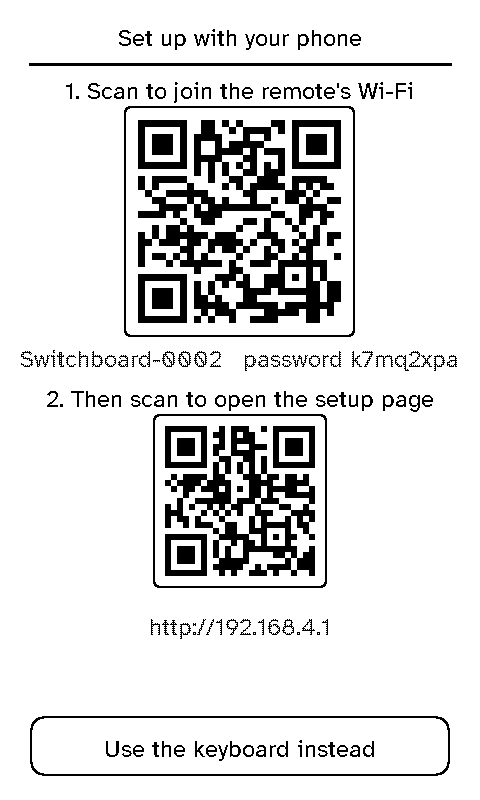
- On first boot the remote shows a splash, then walks you through joining Wi-Fi: pick your network, and type the password on the on-screen keyboard. Or tap Set up with your phone under the list:
- Scan the first QR code to join the remote’s own Wi-Fi hotspot. The hotspot is called
Switchboard-followed by four characters, and its password is shown under the code. - Scan the second code to open the setup page (most phones open it by themselves once they join).
- On the page, pick your network, type its password, and tap Save and connect. The remote joins it. If it can’t, it shows its list of networks again.
- Scan the first QR code to join the remote’s own Wi-Fi hotspot. The hotspot is called
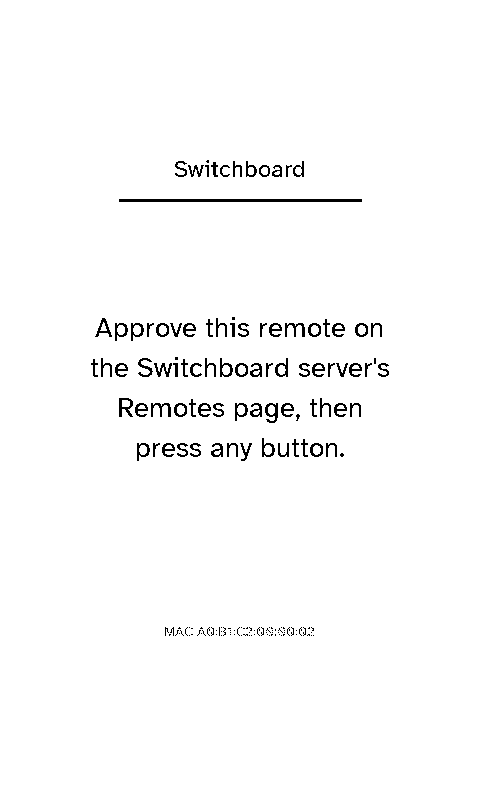
- It registers with the server and asks to be approved.
- On the server’s Remotes page, approve it, choosing its room in the same step.
- Press any button on the remote.
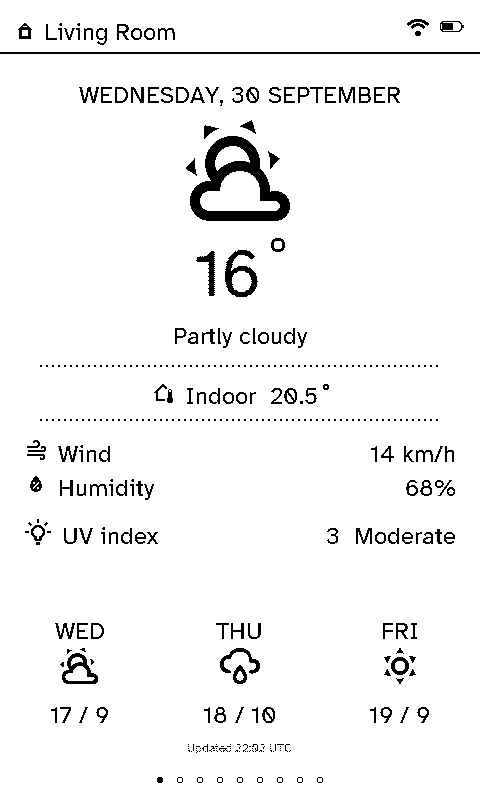
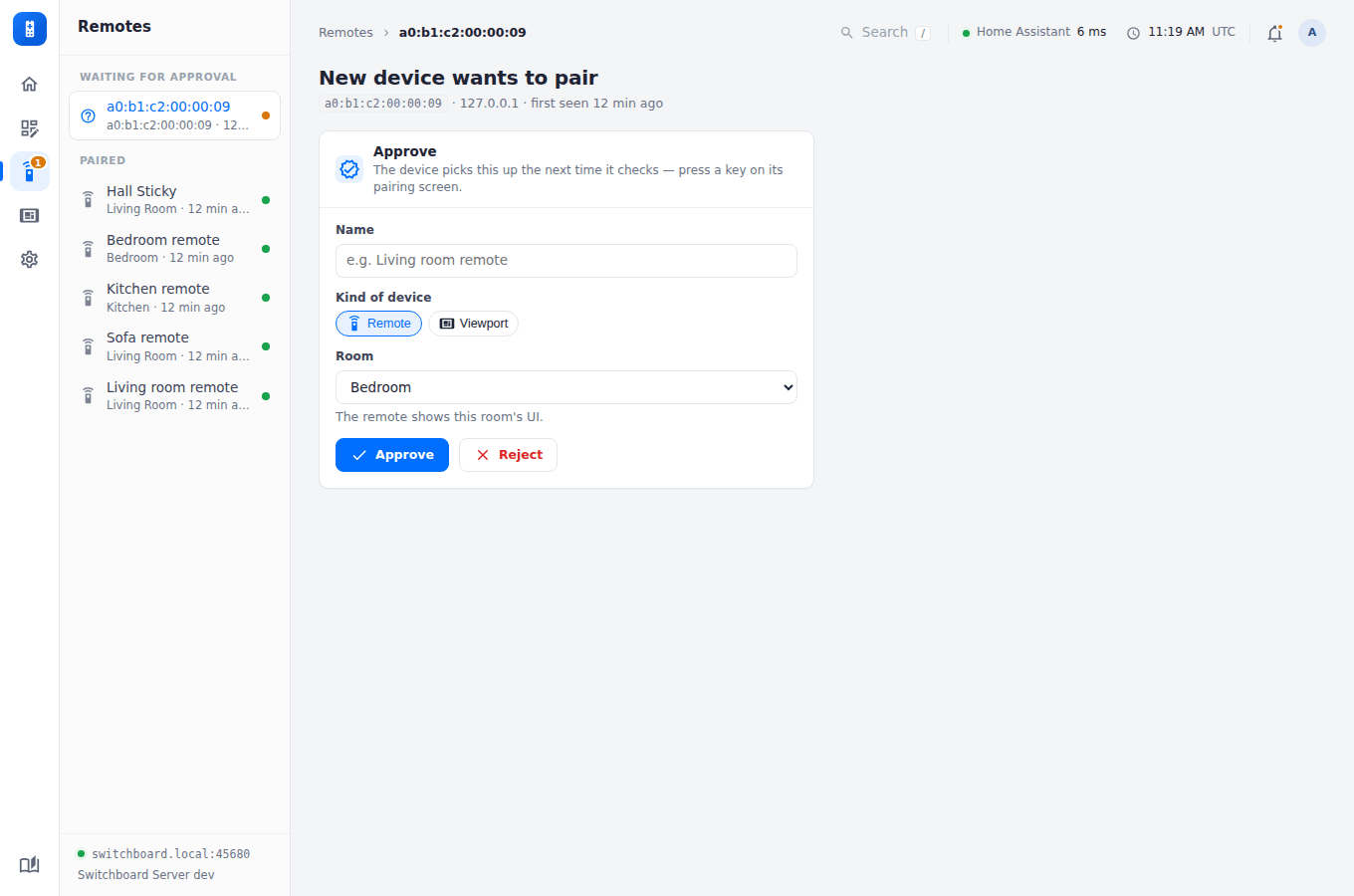
That’s it. The remote now shows whatever you set up for its room. Move it to another room later from Settings → Select room on the remote, or on its page on the server; nothing needs re-flashing.