Remote layouts
Every UI is defined on the server, before any device exists: dumb hardware, server control. A device is only ever assigned one: a remote to a room, a viewport to a viewport layout.
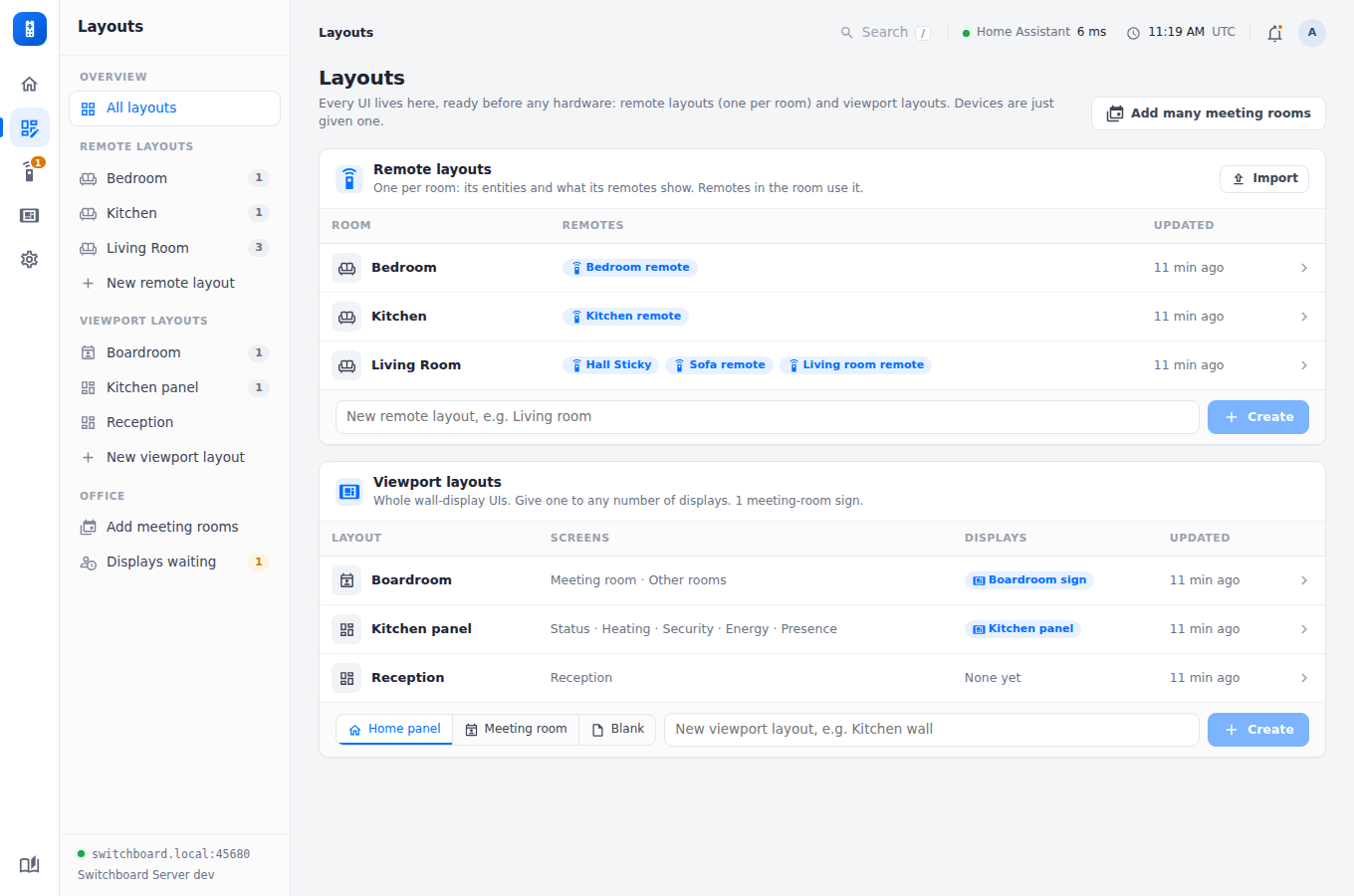
The Layouts column lists every layout, so any is a click away. Under Office are adding many meeting rooms and approving the displays waiting to pair, together. Import loads a room from a JSON file (a room’s editor downloads one).
A remote layout is one room: its Home Assistant entities, one card per page, and what its remotes show. Entity fields search Home Assistant as you type (through the server, which holds the token), show each entity’s state, flag ids Home Assistant doesn’t know, and fill in names, icons and which light controls a light supports. With Home Assistant unreachable they’re plain text boxes.
The pages
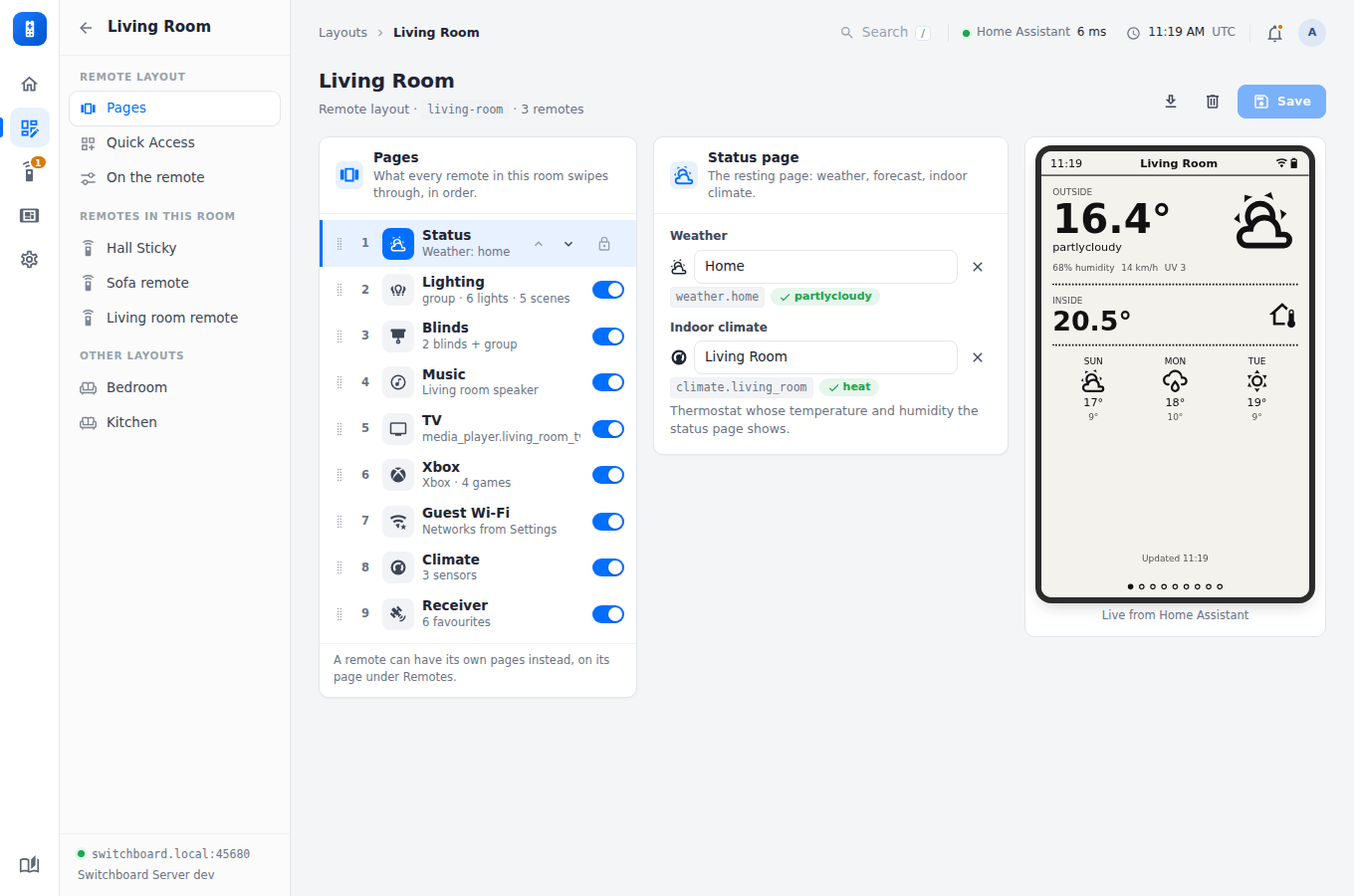
Opening a room shows its pages: what every remote in the room swipes through, in order.
- Reorder a page by dragging its row, or with the arrows on the picked row.
- Switch a page off to skip it. Switched-off pages are listed under Off; switching one back on adds it to the end. Status is always on.
- Click a page to set it up beside the list. A warning under a page’s name says what it’s missing, such as No lights in this room.
The preview on the right is the picked page as a remote in this room would draw it, from the room as it stands in the editor (saved or not) and Home Assistant’s state now. Changes show in it within a second.
The room’s column also has Quick Access and On the remote (below), the remotes in the room, and the other layouts. Save keeps your changes; Discard throws them away. The download button saves the room as JSON.
What each page needs
Each page has its own settings: the Status page’s weather and indoor climate, then lighting, blinds, music, TV, Xbox, the receiver and climate.
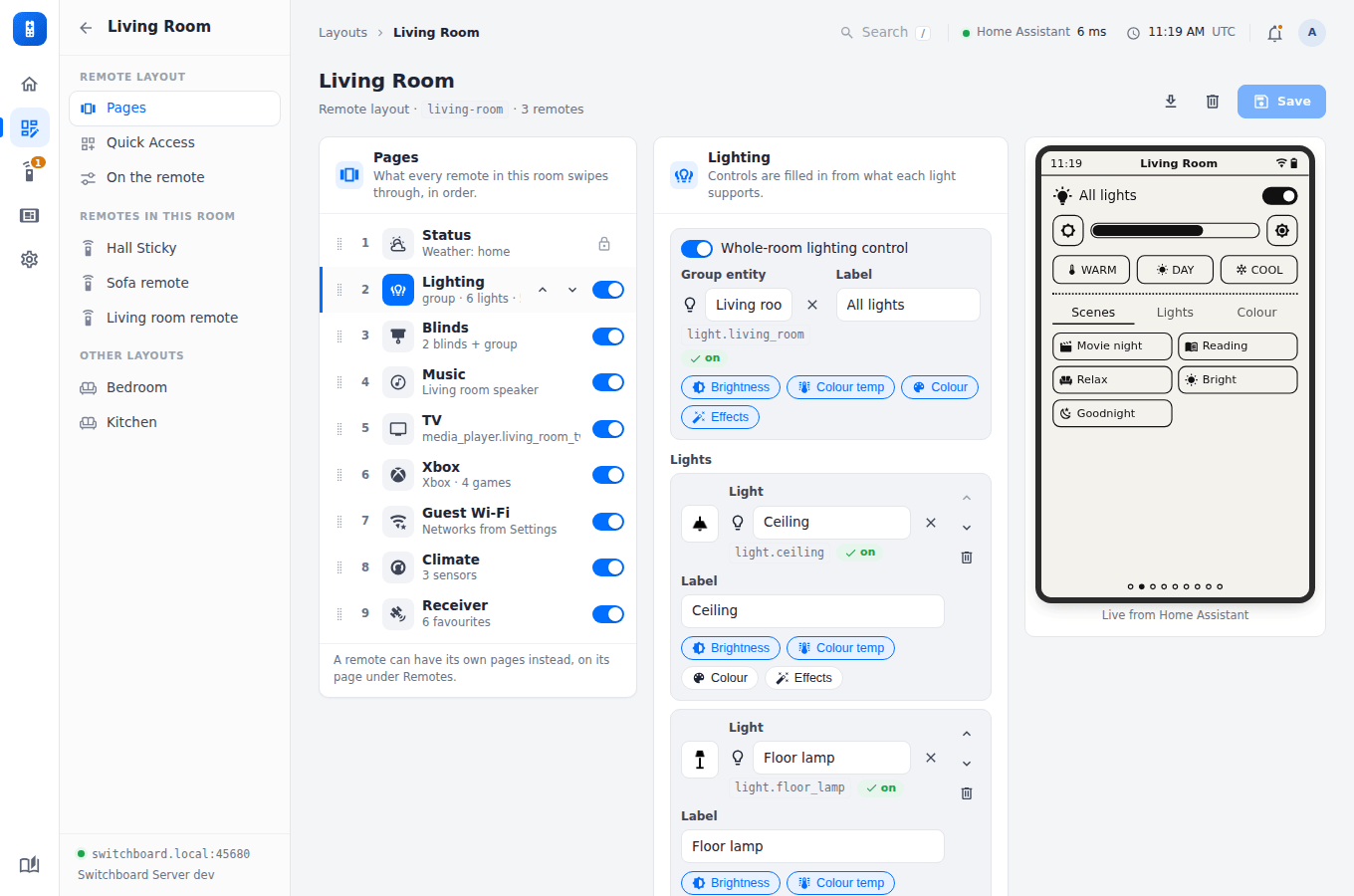
- Lighting: a group for the whole room, with brightness, colour temperature, colour and effects switched on as the lights support them, then single lights and scenes, each with an optional icon.
- Blinds: a group for the whole room, then each blind.
- Music: the media player.
- TV: the TV’s media player and remote, and up to four apps (a name, the app to launch, an icon).
- Xbox: the console’s media player and remote, and its library: a list here, or the console’s own, which the server reads from Home Assistant (up to 36 games, refreshed every 30 minutes).
- Receiver: an Enigma2 box’s media player and up to six favourite channels. It works from Home Assistant’s Enigma2 integration alone (channel, programme on now, and the channel’s picon if the integration’s “Use channel icon” is on). Give the room the box’s address (its OpenWebif, such as
http://192.168.1.50orhttp://root:password@vu.local) and the server also reads the programme on next and each favourite’s picon; Check shows what the box reports. The address stays on the server: remotes never see it. - Climate: the thermostat, and any other temperature sensors to show.
On the remote
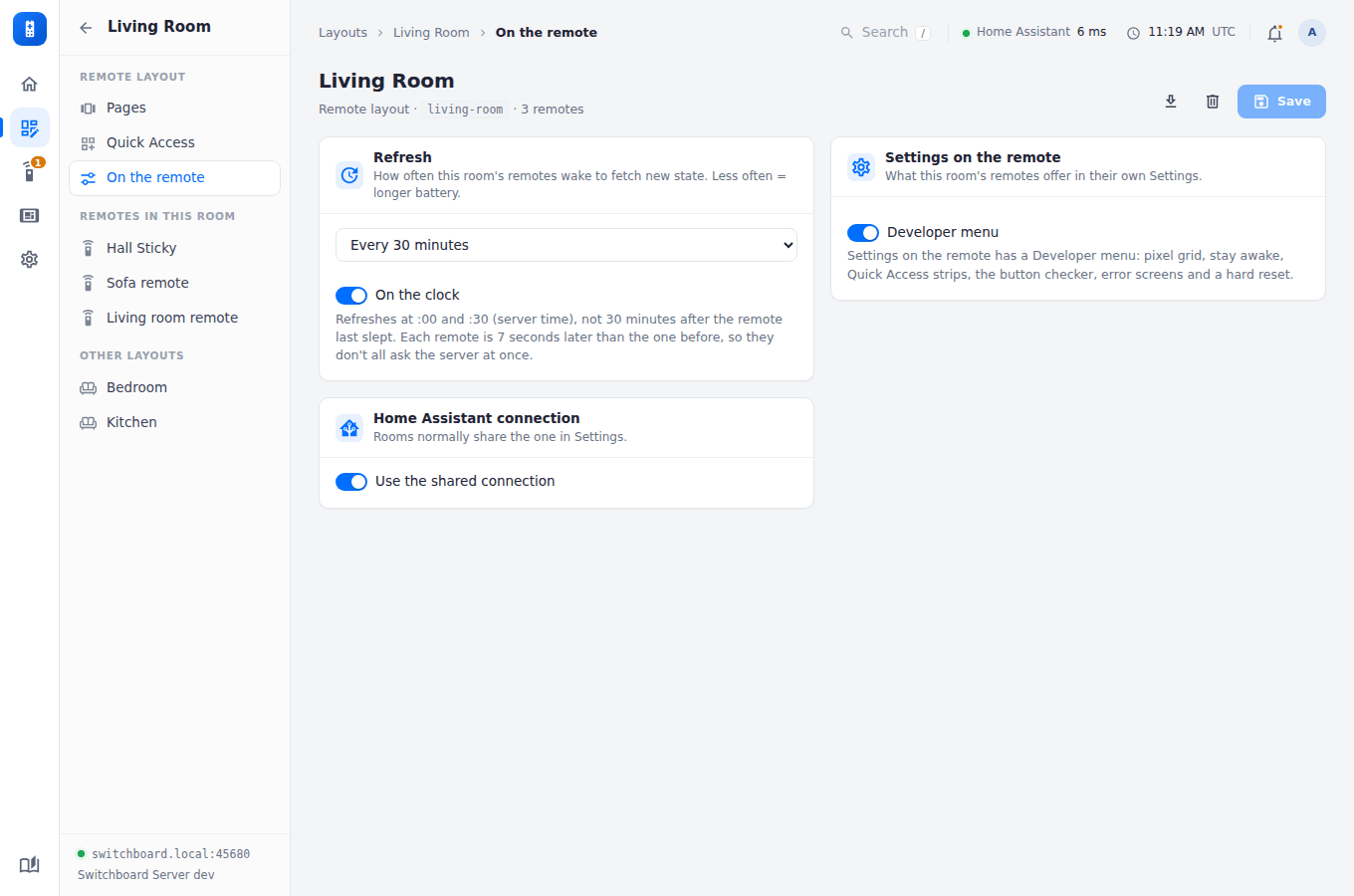
Refresh sets how often the room’s remotes wake to fetch new state (every 15, 30 or 60 minutes); less often means a longer battery. On the clock lands each refresh on the hour and its halves or quarters, each remote a few seconds after the last.
Developer menu (on by default) says whether the room’s remotes have the Developer menu in their Settings: the pixel grid, stay awake, the Quick Access strips switch, the button checker, the error screens and the hard reset. Switch it off for remotes that aren’t for tinkering. Hidden, those switches stop counting too, so nobody can leave a remote awake, or with a grid on it, by a switch they can’t get back to. A remote customised on its own page has its own switch. It takes effect at each remote’s next refresh.
Quick Access
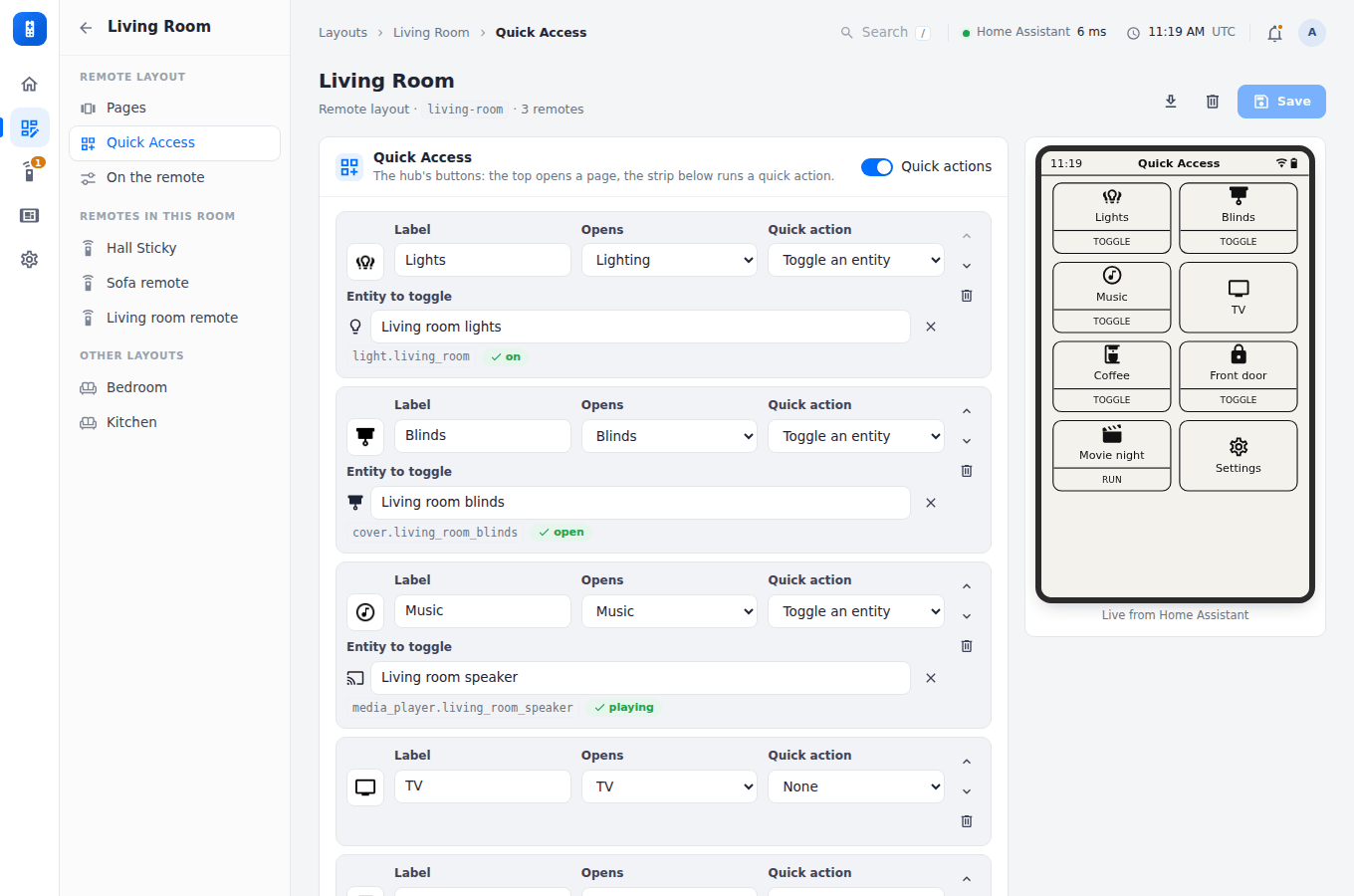
Each button opens a page, and can have a quick action in its bottom strip: toggle an entity, or run a Home Assistant service (with optional JSON data). Without any buttons, remotes show the built-in Jump to grid. See Quick Access for how they look on the remote.