Pairing & auth
Admin password
A single shared admin password protects this UI — set it from the one-time setup screen the first time you open the server, or via the ADMIN_PASSWORD env var (which seeds/overwrites the stored password on every container start, so you can rotate it through docker-compose the same way every other setting here works). Sessions are a plain cookie, in-memory server-side — restarting the container signs everyone out, which is fine for a household admin tool.
This stays plain HTTP by design (LAN-only, same trust model as everything else here) — don’t port-forward it regardless.
Pairing devices
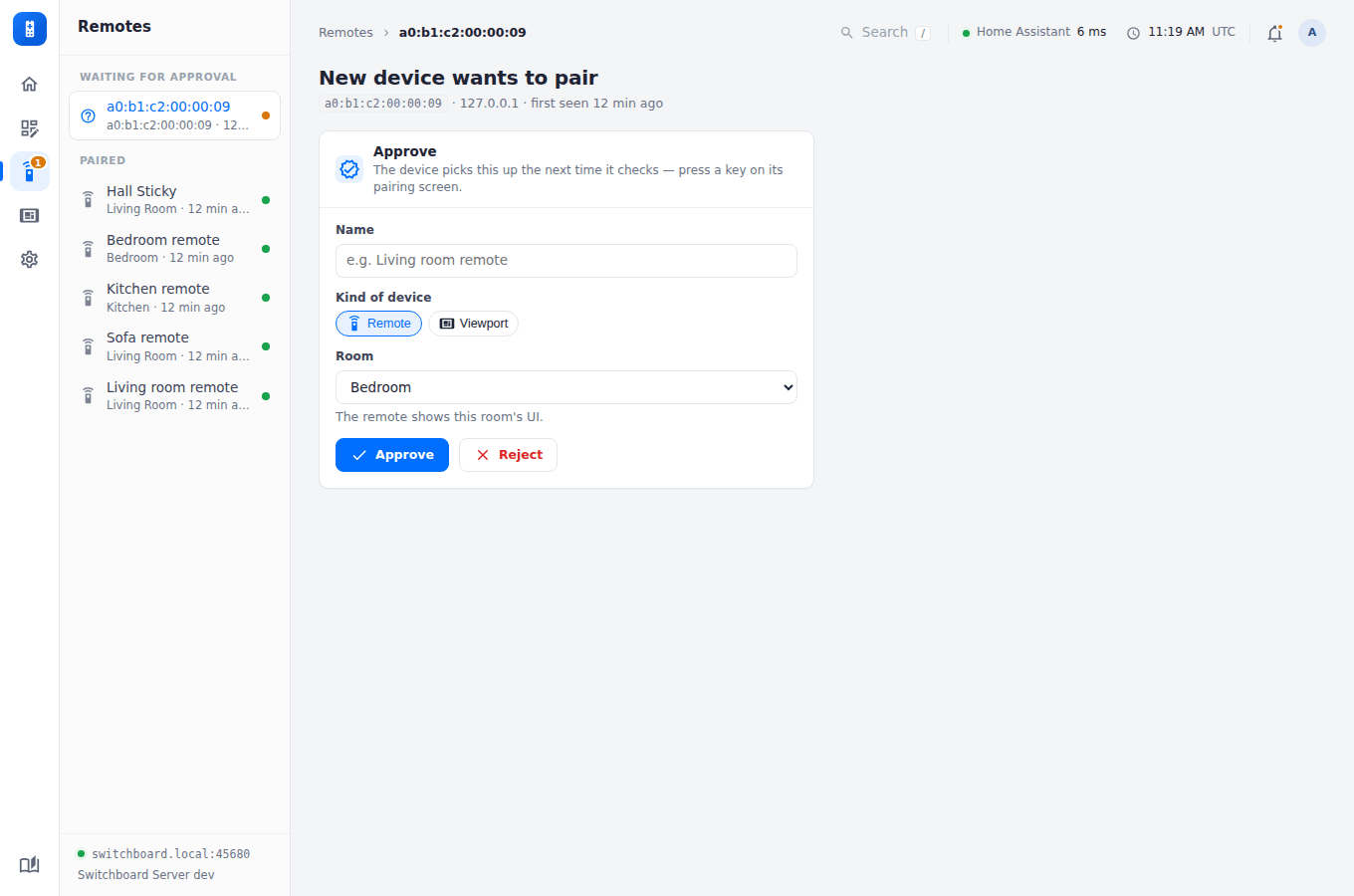
A physical remote pairs with this server once: on first boot it registers itself by MAC address and shows up under Remotes as waiting for approval. Approve it there (optionally assigning its room in the same step — that’s also the MAC → default room mapping) and the server hands it a long-lived token, which it stores and sends on every request from then on. A revoked or deleted device’s old token stops working immediately.
To stop strangers asking at all, switch off Accept new devices (Settings → Pairing; see Security): known devices keep working, and nothing new appears until you switch it back on. The same tab sets how long a sign-in lasts and pauses sign-in after 5 wrong passwords.
If a paired device ever loses its stored token (e.g. a factory reset), it re-registers with the same MAC and gets a fresh token automatically — no need to re-approve it, since the trust decision was already made the first time.
Deleting a device record (DELETE /api/pairing/<mac>) also drops its battery history.
Migrating from an unauthenticated version
/api/devices, /api/devices/<slug>/config, and /api/globals now require either an admin session or a paired device token. If you’re updating from a version of this server that predates auth:
- Update this server first and set an admin password from its one-time setup screen (or
ADMIN_PASSWORD). - Reflash every physical remote with a firmware version that supports pairing (see Getting started) — an older firmware has no token to send and will get
401s fetching its config. - Each remote shows up under Remotes as waiting for approval on its first boot after reflashing; approve it (assigning its room) from there.
Existing room profiles, Globals, and any already-compiled theme carry over unchanged — this only affects how a client authenticates, not what’s stored.