Settings
Open Settings from Quick Access (or Jump to), or the shade’s cog.
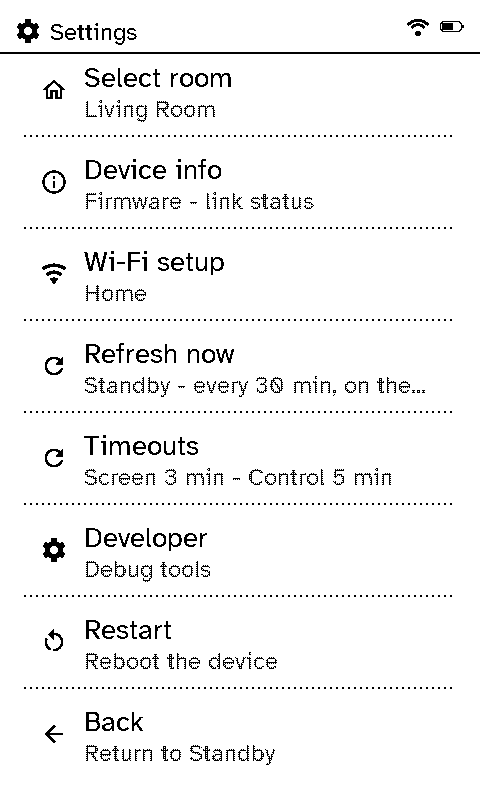
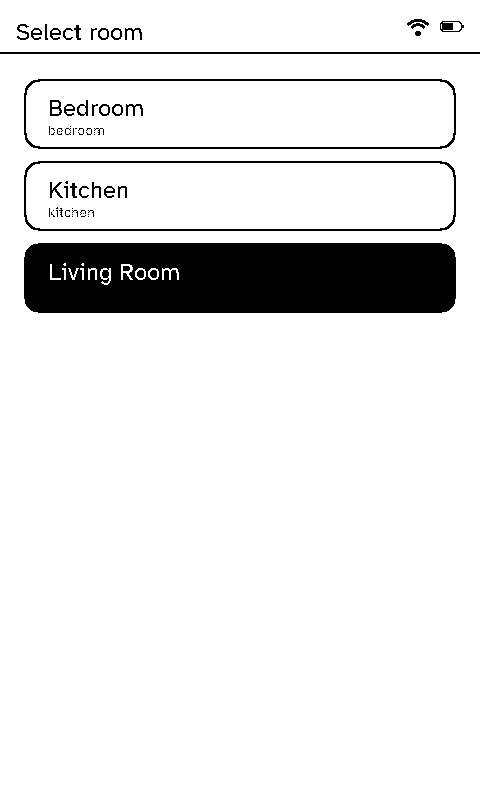
- Select room: which room’s layout this remote uses. A room picked here wins over the one the server assigned.
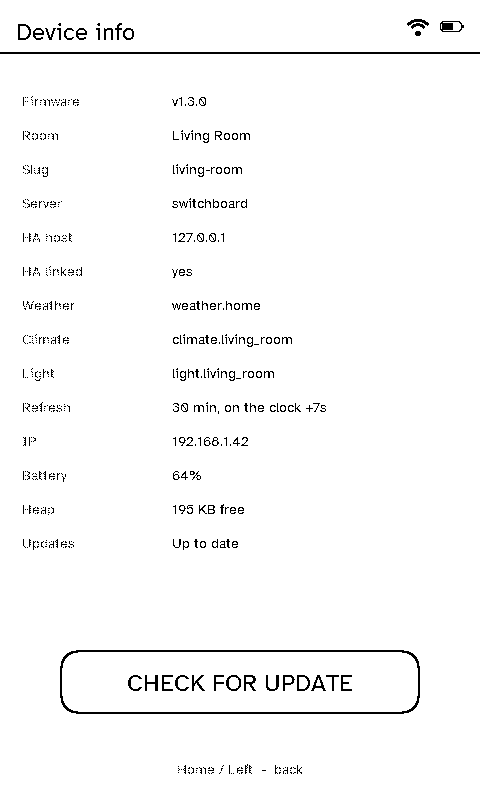
- Device info: firmware version, room, server and Home Assistant, refresh schedule, Wi-Fi address, battery and updates, with Check for update when the server allows it (see Updates).
- Wi-Fi setup: forget the network and join another, with the on-screen keyboard or from your phone (Getting started).
- Refresh now: pull everything from the server straight away.
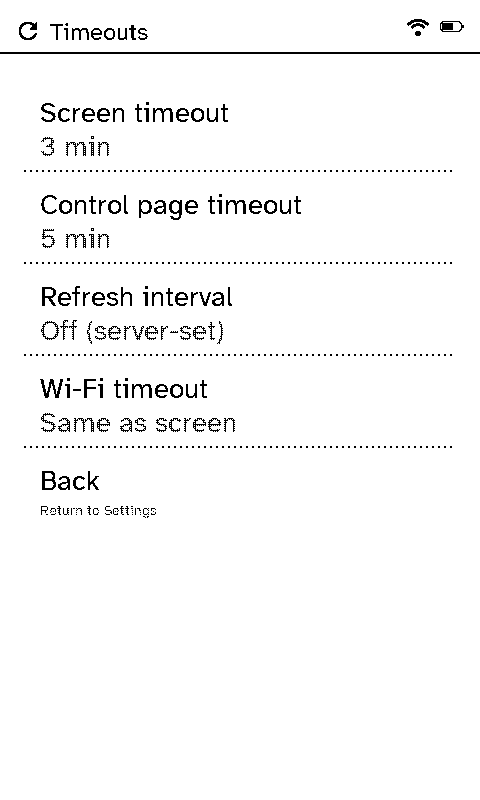
- Timeouts: how long before the screen sleeps, how long a control page stays up before going back to Status, how often it refreshes, and how long the Wi-Fi radio stays on while idle (by default, as long as the screen; the next press reconnects).
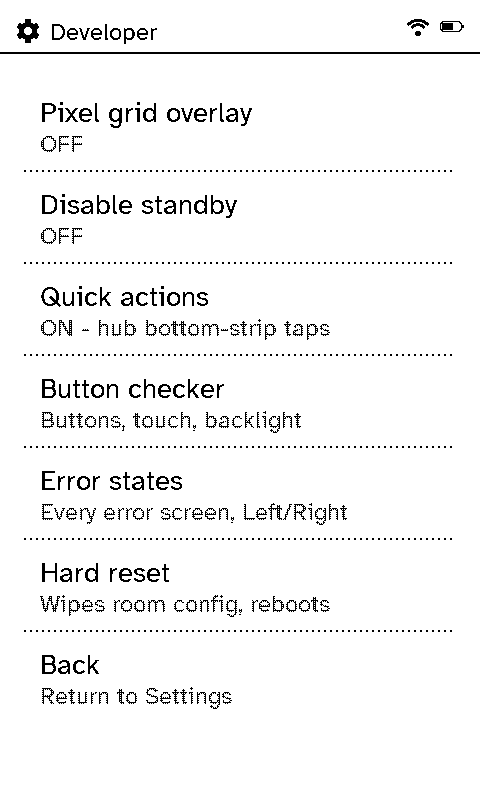
- Developer: a pixel grid overlay, a switch to stop it sleeping, the Quick Access strips on or off, the hardware button checker, a preview of every error screen, and a hard reset that clears the picked room (useful if a bad room setup ever gets a remote stuck). The server can hide this menu, for a remote that isn’t for tinkering (see Remote layouts): the row goes, so does the button checker on the error screens, and its pixel grid, stay-awake and Quick Access strip switches stop counting.
- Restart.
The hardware button checker
Developer → Button checker confirms every input works on a newly built or flashed remote: it ticks off Left, Right, Power and Home as each is pressed, shows where the screen is touched, steps the backlight and warmth, and runs a full refresh on demand. Hold Home to start it again.