Battery life
Every device reports its battery on its requests (X-Battery), and the server learns from those readings how many days each one has left. No firmware support is needed beyond that header, so remotes and viewports both get it.
How long a charge lasts
| Device | On a charge | Why |
|---|---|---|
| Remote (Xteink X4 Pro) | about 30 days with light use | The screen sleeps soon after you put it down, and the Wi-Fi radio goes off while it’s idle. A press wakes both. Use it a lot, or shorten its Timeouts, and it lasts less. |
| Viewport (reTerminal E1002) | around 3 months | It’s in deep sleep between refreshes. When a screen hasn’t changed, the server answers 304 and the panel isn’t redrawn. During quiet hours it wakes less often. Refreshing more often, or showing live sections that wake it every few minutes, costs battery. |
E-ink only uses power to change the picture, and the server does the work: the devices never talk to Home Assistant themselves, and everything they draw arrives ready. Your own figures depend on how you use them, which is what the estimate below is for.
Where it shows
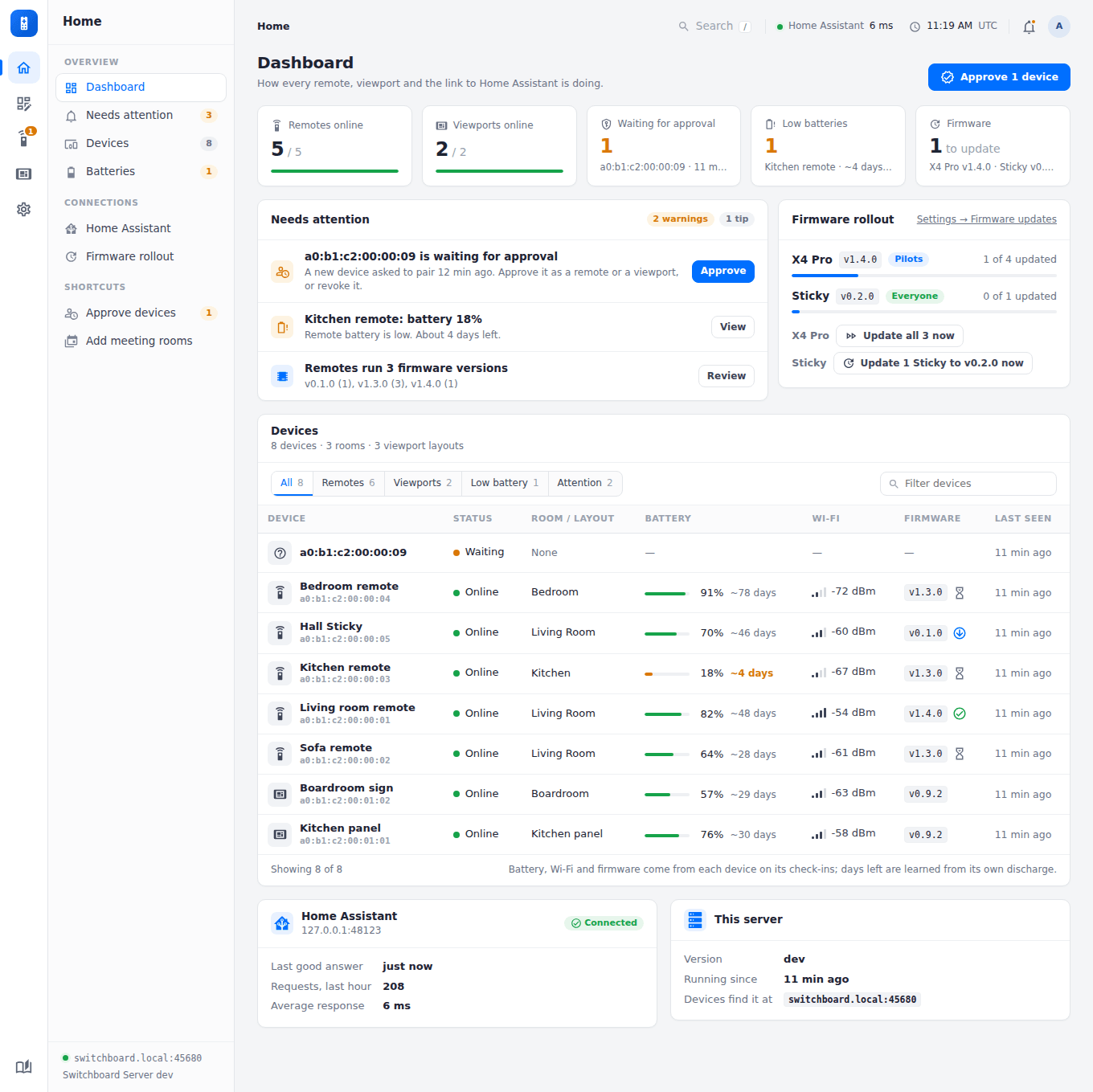
- Home: each device’s battery bar has a “~N days” hint. Hover it for how fast the battery is falling, how long since the last charge, and how long a full charge lasts. A device that’s still learning says “learning…”.
- Last charged: the Home table’s Last charged column, and a badge on each device’s page, say when the server last saw it charged (“today”, “yesterday”, “8 days ago”; hover for the date and time). It’s the top of the last charge the server spotted in the readings (below), so a top-up of only a couple of percent doesn’t count. A dash means no charge has been seen since the server first heard from the device.
- A remote’s page: the battery badge reads, for example, “72% · ~33 days”.
- Needs attention: Home warns when a device has about 3 days or less left, and the low (20%) and critical (10%) battery warnings say how many days are left.
How it’s worked out
- History. Readings are kept at most once every 30 minutes, or whenever the level changes, for 45 days, in
<DATA_DIR>/_battery-history.json(written at most every 5 minutes, and on shutdown). - Charges. The level rising 3% or more above the last few readings is a charge once the next reading stays up too, or at once for a rise of 10% or more. It starts a new discharge from the top of the rise. One high reading that falls back is not a charge.
- Measured rate. Once there are 12 hours of readings since the last charge and the level has fallen at least 2%, the drain rate is the least-squares slope of those readings, in % per day. A fuel gauge moves in whole percents, so less than that is noise.
- Sure enough to say. A wall display works its level out from the battery’s voltage, so its readings wander a little either side of the true level. The rate only counts once it stands well clear of that wander. Until then the display says “learning…” rather than guessing.
- Learned rate. Each discharge of at least 2 days and a 5% drop is folded into a rate learned across charges. Right after a charge, before there’s enough new data, that learned rate answers. The more charges a device has been through, the better it knows itself.
- Days left = (level − 5%) ÷ rate, counting down from the device’s last reading. 5% is about where a remote parks on its charge screen.
A device that barely drains shows no estimate rather than a wildly long one. Removing a device from Remotes also deletes its history.
In Home Assistant
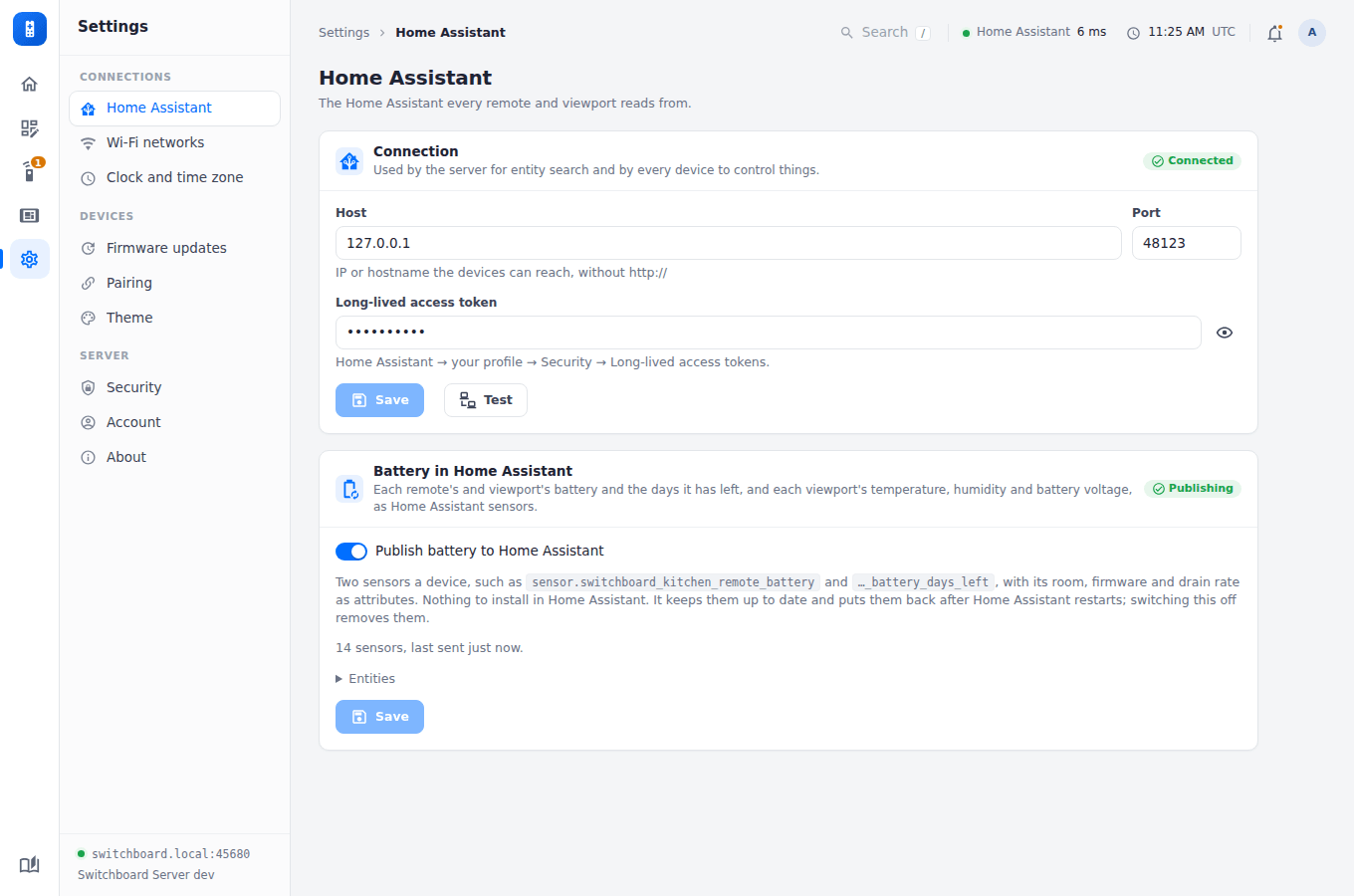
Switch on Publish battery to Home Assistant (Settings → Home Assistant; off by default) and every paired remote and viewport with a battery reading gets two sensors in Home Assistant:
| Sensor | State | |
|---|---|---|
sensor.switchboard_<name>_battery |
the battery, in % | device_class: battery, so it shows with a battery icon and works in battery cards and alerts |
sensor.switchboard_<name>_battery_days_left |
the days left, or unknown while it’s still learning |
device_class: duration, in days |
A viewport also gets the readings its own firmware used to send straight to Home Assistant: sensor.switchboard_<name>_temperature (°C) and …_humidity (%) from its built-in sensor, and …_voltage (V, the battery’s). If automations used the kitchen panel’s old sensor.dashboard_battery, _voltage, _temperature or _humidity, point them at these.
<name> is the device’s name on the server (Kitchen remote → kitchen_remote); two devices with the same name get the end of their MAC address added. Both sensors carry the device’s MAC, type, room (or viewport layout), firmware and last check-in as attributes; the battery sensor also has the drain rate, days since the last charge, when it was last charged (last_charged, a timestamp, empty until a charge is seen) and whether the estimate is measured or learned.
Use them like any other sensor: an automation that sends a notification when …_battery_days_left drops below 2, or a dashboard card of every Switchboard battery.
How it’s done. The server sets the states through Home Assistant’s REST API with the token it already has, so nothing needs installing in Home Assistant (no MQTT broker, no integration). It sends a sensor when its value changes, and every 10 minutes regardless, because Home Assistant forgets states set this way when it restarts. A renamed device’s old sensors are removed, as are a removed or revoked device’s, and switching publishing off removes them all. Because these sensors have no unique id, they can’t be renamed or given an area in Home Assistant’s UI; wrap one in a template sensor if you need that.